







Offline maps only help if you set them up before you need them, which comes down to four steps: Select the area that actually matters, Activate the download while you still have a connection, Verify it works before you rely on it, and know your Exit, the fallback for when even the offline map isn’t enough.
Quick answer: Download Google Maps over Wi-Fi, include key areas, test it before departure, and remember offline maps do not provide every live route feature.
Choose the area to download
Download an area that covers your accommodation, arrival point, and daily neighborhoods, not just one landmark, and lean wider rather than smaller.

Download an area covering the accommodation, arrival point, daily neighborhoods, and the routes between them rather than one landmark alone.
Select an offline area that covers your accommodation, your arrival point (airport or station), the neighborhoods you’ll actually spend time in, and the route between them, not just a single point. A map centered tightly on one landmark often misses the walk from your accommodation to the nearest transit stop.
Avoid a too-small map
Download a wider area than you think you need. It’s a small amount of extra storage against the real cost of finding your saved map doesn’t cover a street you end up walking down.
Storage and update considerations
Offline maps use meaningful device storage, and downloaded areas can become outdated over time. Check your available storage before downloading a large area, and plan to redownload before a future trip rather than assuming an old download is still current.
This offline map is one piece of a wider backup habit that applies to every journey on a trip, not just navigation. The MOVE Stack system for getting around on a solo trip breaks down that fuller system.
Download before leaving Wi-Fi
Yes, after downloading the relevant map area; offline use has limits, so test the map and keep written addresses or another route backup.
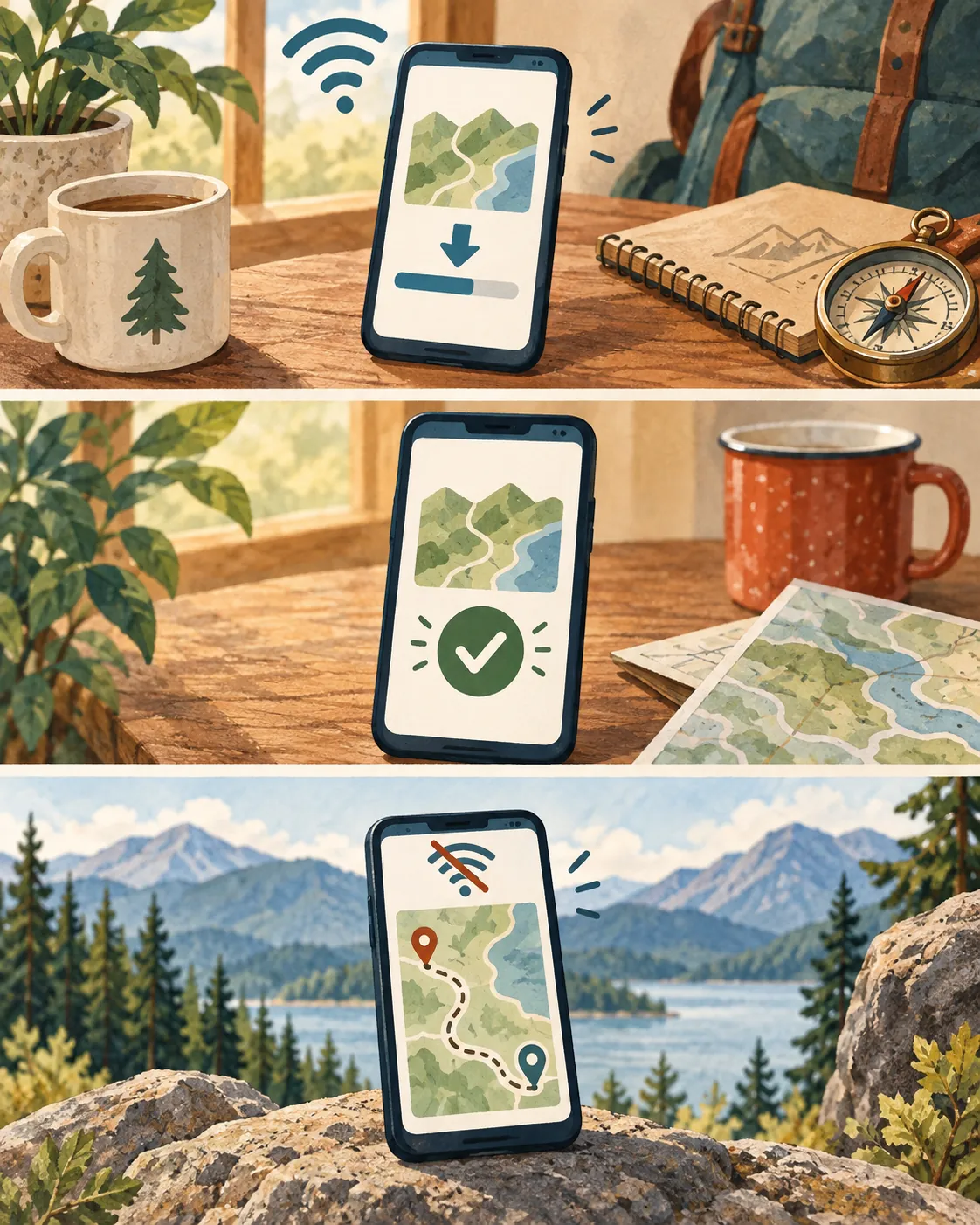
Download the selected area while connected, confirm completion, then test saved addresses and a sample route without data before travel.
Open Google Maps while connected to Wi-Fi, search for or navigate to the area you want, and use the app’s offline-area download option (menu labels differ slightly between Android and iPhone, so look for wording like “download offline map” or “save offline area” in your version) to select and confirm the region. Wait for the download to finish completely before you disconnect.
Android and iPhone labels may differ
The exact menu wording and location for offline downloads varies slightly between Android and iPhone and can change with app updates, so if the option isn’t where you expect, check the app’s own help menu rather than assuming the feature has been removed.
Do not rely on a partial download
A download interrupted partway through can leave you with an incomplete map that looks finished in the app’s list but fails once you’re actually navigating. Confirm the download shows as complete before you leave connectivity.
Verify the offline map
Download the area in Google Maps before departure, then test it without connectivity; no separate mode restores live data.
Before you travel, put your phone in airplane mode or otherwise disable data, then search for your saved accommodation address, check that your location dot appears correctly, and preview a route between two points inside your downloaded area. This test takes a few minutes at home and catches problems while you can still fix them.
Before a day hike near Koh Chang, I downloaded the trail map the night before and actually tested it in airplane mode, which is the only reason I trusted it once I lost signal on the trail itself.
What to test
Test that your accommodation appears in search, that the blue location dot shows your position accurately, and that a sample route between two saved points actually renders.
How to confirm the download is current
Revisit the offline area in the app’s download list before each trip and refresh it if an update is available, rather than assuming a download from a previous trip is still accurate.
Use offline navigation with limits in mind
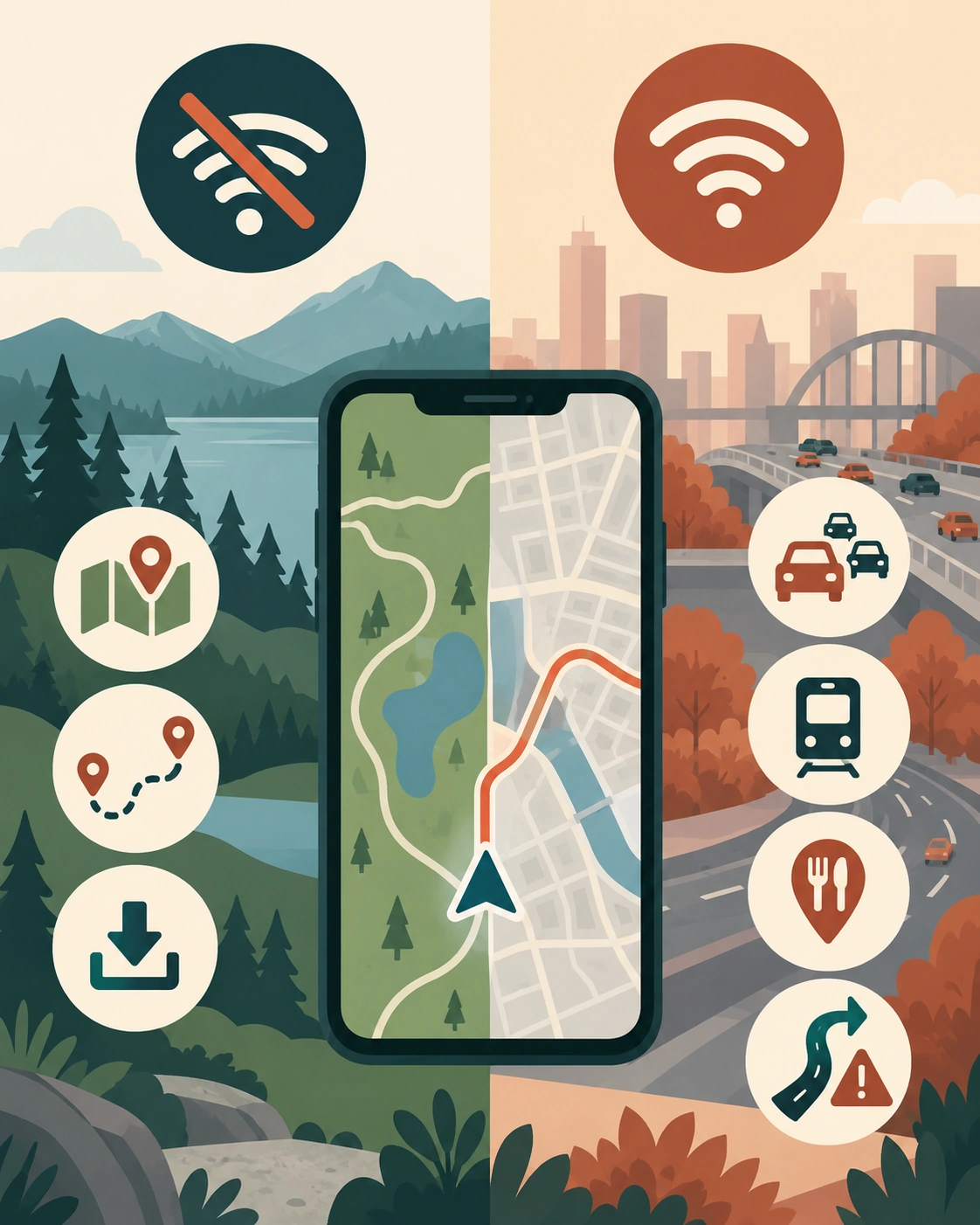
Offline maps may lack live traffic, transit updates, some route types, fresh place information, and rerouting beyond the downloaded area.
Offline maps can support saved areas and routes, but live traffic, current transit schedules, fresh place information, and rerouting beyond coverage can require connectivity.
Offline maps generally handle walking and driving directions within the downloaded area reasonably well. What they typically can’t do is show live traffic conditions, current transit departure times, or reroute you if you travel outside the downloaded boundary. Treat the offline map as a reliable static reference, not a live service.
Walking and driving use
Walking and driving directions within your downloaded area are usually the most reliable offline features, since they depend less on live, constantly updating data than transit does.
What requires connectivity
Live traffic, current transit schedules, fresh business information, and rerouting once you leave the downloaded boundary generally need a data connection to work as expected.
Manage and refresh the map
The area may be missing or outdated, the route may need live data, the map may not cover the destination, or settings may interfere.

Refresh a reused map, download new coverage, re-test the setup, check storage, and retain a written address backup if offline directions fail.
Before each trip, check whether your existing downloads are current or need refreshing, and confirm you have enough storage for any new areas. Keep a written or screenshotted backup of key addresses no matter how confident you are in the app, since a backup that doesn’t depend on the app working at all is the difference between a minor inconvenience and being genuinely stuck.
Before each trip
Refresh any offline maps you plan to reuse, download new areas for a new destination, and re-test the setup rather than assuming last trip’s setup still works.
If offline directions fail
If offline directions stop working or give you unreliable results, fall back to your written address backup and general orientation. The full offline fallback stack for a dead phone or no signal handles what to do when the offline map itself isn’t enough.
If you’re wondering whether a different app might suit this trip better, comparing offline-capable navigation apps runs through how to compare Google Maps against other offline-capable options.
All of this still depends on having a connection to download the map in the first place. See the stay-connected-abroad setup system for getting that sorted before you need any of it.
Examples
Normal case: A traveler downloads their accommodation’s neighborhood before leaving home Wi-Fi, tests it in airplane mode, and navigates confidently once they land without needing data.
Friction case: On a day trip, the traveler walks slightly outside their downloaded boundary and the app can no longer route them.
Recovery case: They stop, check their written backup address, and use general orientation (the direction of a landmark they recognize) to walk back into the downloaded area before re-checking the route.
For a longer trip through unfamiliar transit, navigating public transit safely on your own shows how to combine this offline map habit with transit-specific navigation.
Once you’re oriented again, re-routing between two points without starting over maps out the process.
FAQ
Can I use Google Maps without internet?
Yes, after downloading the relevant map area; offline use has limits, so test the map and keep written addresses or another route backup.
Why does Google Maps not work offline?
The area may be missing or outdated, the route may need live data, the map may not cover the destination, or settings may interfere.
How do I turn on offline mode in Google Maps?
Download the area in Google Maps before departure, then test it without connectivity; no separate mode restores live data.
What are the limitations of offline Google Maps?
Offline maps may lack live traffic, transit updates, some route types, fresh place information, and rerouting beyond the downloaded area.
Start Building Travel Readiness
Your Free Prep System.
Not tips, not wanderlust, not “just go for it” advice.
Real systems. Honest experience. One focused email a month. Get 3 Free Tools the moment you join:
1. 60-Day Solo Travel Ready Checklist
Your complete prep timeline from decision to departure
2. First 48 Hours Arrival Survival Card
The exact protocol for landing confident, not lost
3. Booking Confidence Checklist
The tool for the moment the booking button feels impossible to press
No schedule pressure. Unsubscribe any time.
Author Box
Zisco Nueda is the solo travel educator behind Solo Travel Ready, who built the Select, Activate, Verify, Exit sequence in this article after one recurring lesson: an offline map downloaded but never tested is only slightly better than no map at all, the exact opposite of what Zisco did before a day hike near Koh Chang, downloading the trail map the night before, testing it, and leaving the route and return time with the guesthouse owner. App menus, offline capabilities, and platform behavior change with updates, so verify the current download process in the app’s own help resources before you travel.
Last updated: September 2026