






There’s no single best navigation app, because the right one changes with what you’re actually doing: Function tells you what the app needs to handle for this trip, Interface tells you whether it presents that clearly enough to use while distracted or tired, Independence tells you whether it works without a live connection, and Test means running it before you need it, not during your first unfamiliar walk.
Quick answer: The best navigation app depends on your mode and destination; compare routing, transit, offline maps, privacy, battery use, and a tested backup.
Choose by trip mode
The strongest app for walking directions isn’t necessarily the strongest for transit planning or driving, so it’s worth separating these rather than assuming one app should do everything equally well. Walking-focused use benefits from clear pedestrian routing and offline maps. Transit-focused use benefits from accurate live departure times. Driving benefits from real-time traffic rerouting. Multi-stop planning benefits from an app that handles saved places well.
I once relied on a driving-focused app while walking through an unfamiliar district, and its idea of the “fastest route” kept routing me along roads with no sidewalk at all.
Mode-specific criteria
For walking, put offline map quality and pedestrian-specific routing first. For transit, put live departure accuracy and clear platform or stop information first. For driving, put real-time traffic and rerouting speed first.
One primary and one backup app

Choose one primary app for most needs and one backup that works differently, then retain written addresses in case both fail.
Rather than searching for a single perfect app, pick one primary app that covers most of your trip’s needs and one backup that works differently, ideally one that doesn’t depend on the same data source or account as your primary. If your primary fails, you’re not starting from zero.
Choosing an app, testing it, and pairing it with a backup is one piece of a larger decision system that applies to every journey on a trip, not just navigation. The MOVE Stack system for getting around on a solo trip spells out that fuller system.
Compare the core navigation functions
Sometimes: transit-focused, driving-focused, privacy-focused, or offline apps may fit a specific trip better; compare the function you actually need.
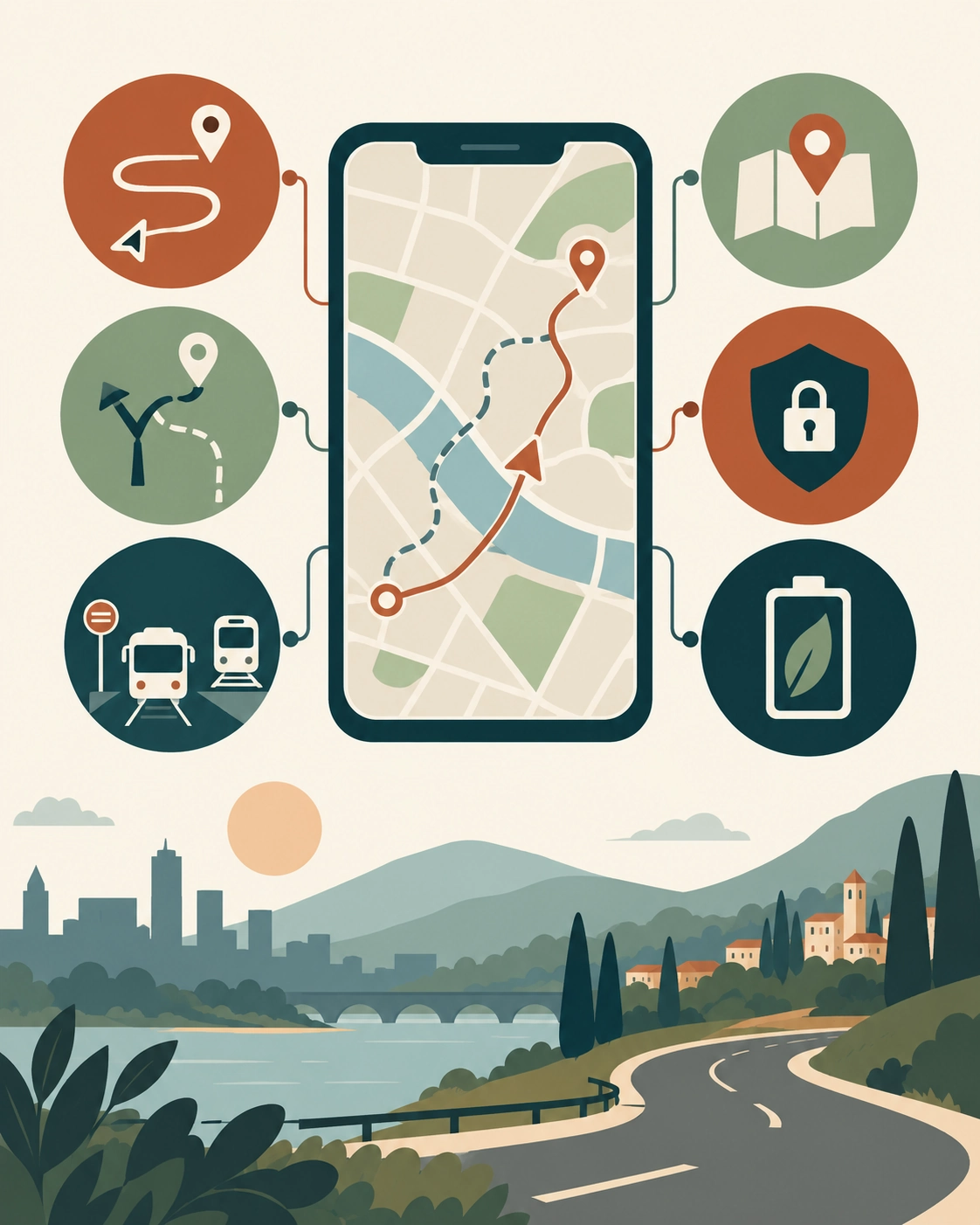
Compare an app's routing, rerouting, transit information where relevant, offline saved places, privacy settings, and data or battery use for the trip mode.
Before choosing, check a few core functions against your actual trip: does the app give clear turn-by-turn directions, does it reroute quickly when you go off the planned path, does it show accurate transit departure times where relevant, does it let you save places for offline reference, and how much data or battery does it use over a typical day of navigation.
What to test before travel
Before you leave, test the app on a route you already know, so you can judge whether its directions, timing, and rerouting behavior match reality before you’re relying on it somewhere unfamiliar.
What the app cannot guarantee
No navigation app can guarantee a route is current in every unfamiliar city. Construction, closures, and service changes happen faster than any map updates. Treat the app’s route as a strong suggestion, not an order you have to follow.
Set up the app before departure
Before you leave, save key addresses, download offline maps in advance, and review the app’s location and privacy permissions.
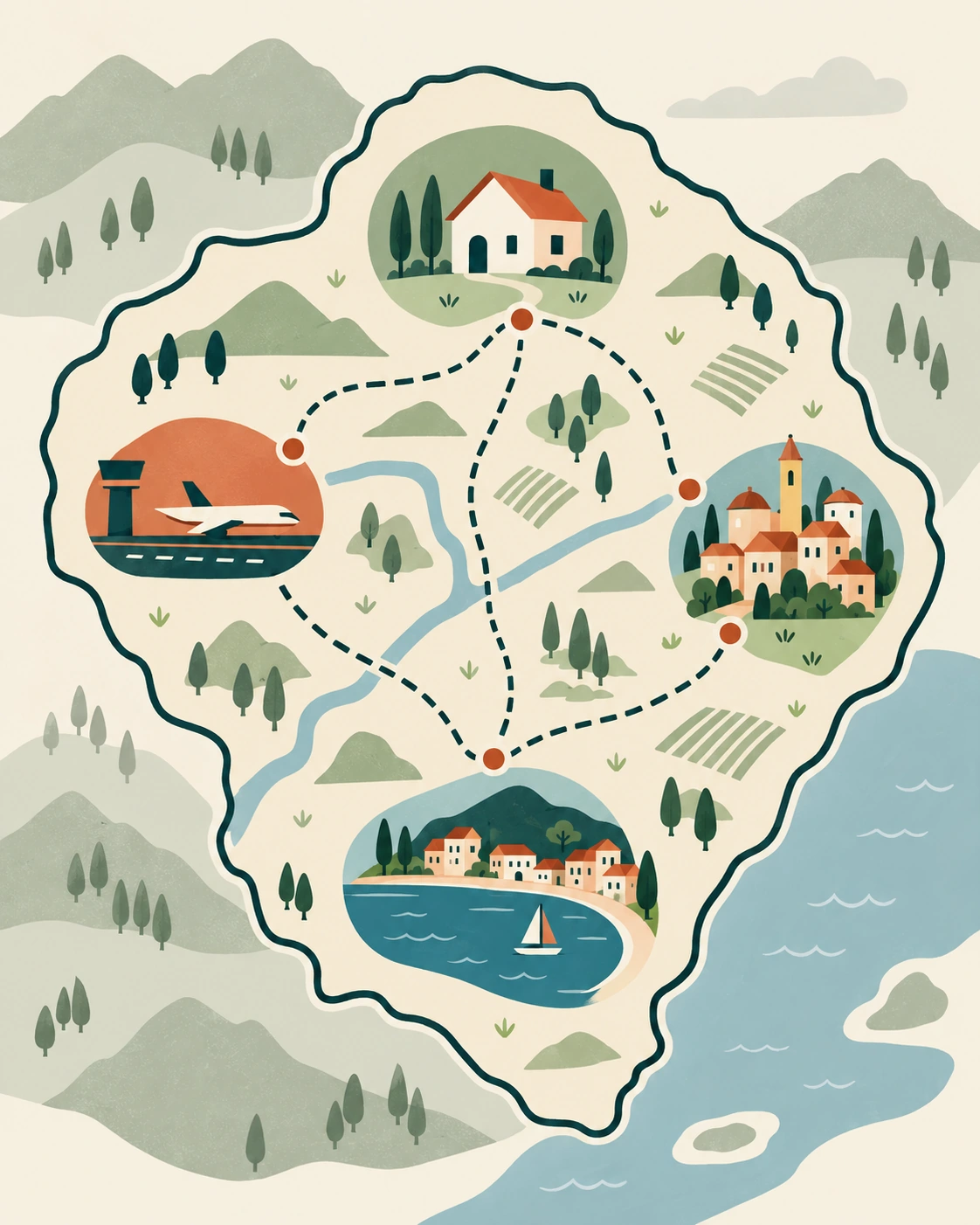
Save accommodation, arrival point, and key stops; download offline coverage; review privacy permissions; and retain screenshots or written address backups.
Before you leave home, save your accommodation, the arrival airport or station, and any key stops you already know about, so they’re accessible without typing an address under pressure later. Review the app’s location and permission settings, and confirm whether the offline maps you’ll need are actually downloaded, not just available to download. Setting up an offline map before you lose signal covers this specific setup process for Google Maps if that’s your primary app.
Privacy and location settings
Review what location data the app collects and shares, and adjust permissions to only what the app actually needs to function (typically location access while in use, not constant background tracking) unless a specific feature you rely on needs more. Staying connected enough to use any of this reliably is its own setup question, and the relevant setup guide is the stay-connected-abroad setup system, which explains how to get data access sorted before you arrive.
Saved places and screenshots
In addition to saved pins in the app itself, keep a screenshot or written note of your key addresses. A saved pin depends on the app working. A screenshot works even if the app crashes or your account has an issue.
Use navigation without surrendering judgment
Treat every route as a strong suggestion, not a command: cross-check street signs and pause if what you see doesn’t match the app.

Treat a route as a strong suggestion, compare it with visible street signs and conditions, and pause in a public place when it no longer fits what you see.
A navigation app’s directions are a strong default, not a command to follow without question. If a route sends you somewhere that doesn’t match what you can see (a closed street, an unlit alley, a direction that goes against visible signage) stop and rethink rather than continuing because the app said so.
When to stop and reorient
If the route stops matching what you see around you for more than a block or two, or takes you somewhere that feels wrong, pause in a public place and re-check the route rather than continuing on faith.
Avoiding blind trust in the route
Cross-check the app’s suggested street names and direction against visible signage when you can. This catches most of the rare cases where an app’s data is outdated or a temporary closure has changed the real route.
Build a fallback stack
The best free option handles your trip mode and destination reliably, with saved places, clear directions, and an offline fallback.
Pair your primary app with an offline-capable backup, a written copy of your key addresses, and general awareness of the local transport options in case your phone becomes unusable entirely. The full offline fallback stack for a dead phone or no signal explains the full offline stack if you want to build this out before you travel.
If navigation apps become unreliable for any reason, navigating public transit safely on your own addresses a non-app-dependent way to move.
Data failure
If you lose data access, your downloaded offline maps and saved written addresses become your primary reference. This is exactly why the setup step above matters more than which app you eventually choose.
Battery or account failure
If your phone dies or an app account issue locks you out, your written backup address and a general sense of your surroundings (which direction you came from, a landmark you passed) matter more than any app feature. See comparing ride-hailing apps and their safety features for a paid backup option if you need to get somewhere quickly without navigating it yourself.
Examples
Normal case: A traveler uses their primary app’s offline maps to walk from a train station to their accommodation, having tested the same app on a familiar route before the trip.
Friction case: On a later day, the app’s data connection drops mid-route in an area with no downloaded offline map for that specific stretch.
Recovery case: The traveler stops at a visible landmark, opens their backup offline map (downloaded for a wider area than they initially thought they’d need), and confirms their position before continuing, noting to expand their offline coverage next time they have Wi-Fi.
FAQ
What is the #1 navigation app?
There is no universal number one; choose by travel mode, destination coverage, offline needs, privacy, and route verification.
What is the best free navigation app?
The best free option handles your trip mode and destination reliably, with saved places, clear directions, and an offline fallback.
Is there a better navigation than Google Maps?
Sometimes: transit-focused, driving-focused, privacy-focused, or offline apps may fit a specific trip better; compare the function you actually need.
Is Waze better than Google Maps?
Waze can suit live driving updates, while Google Maps often covers walking, transit, discovery, and offline maps more broadly; test the relevant mode.
Start Building Travel Readiness
Your Free Prep System.
Not tips, not wanderlust, not “just go for it” advice.
Real systems. Honest experience. One focused email a month. Get 3 Free Tools the moment you join:
1. 60-Day Solo Travel Ready Checklist
Your complete prep timeline from decision to departure
2. First 48 Hours Arrival Survival Card
The exact protocol for landing confident, not lost
3. Booking Confidence Checklist
The tool for the moment the booking button feels impossible to press
No schedule pressure. Unsubscribe any time.
Author Box
Zisco Nueda is the solo travel educator behind Solo Travel Ready, who built the Function, Interface, Independence, Test sequence in this article after watching the same failure repeat across trips: an app chosen for its reputation rather than for what the specific trip actually needed, a driving-focused app when what a walk through an unfamiliar district actually needed was something built for pedestrians. App features, offline capability, and market availability change over time, so verify current functionality directly in the app before relying on it for an unfamiliar route.
Last updated: September 2026